
How to prepare images for SEO: filename, title, alt text and description
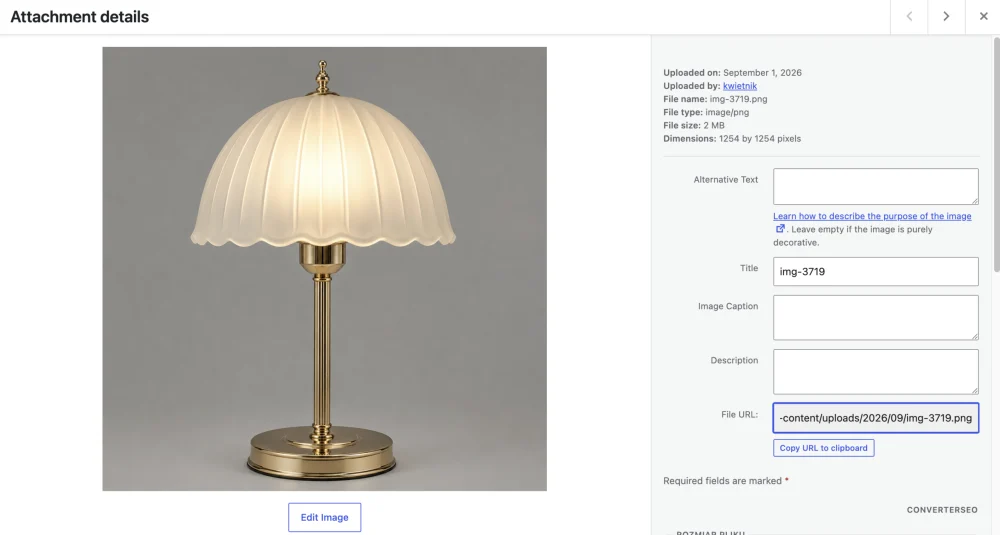
You have a few hundred product photos on your site. Each one shows something — a lamp, a headstone, a shoe, an armchair. But if the file is called IMG_4821.JPG, has no alt text and no title, then as far as search engines and AI models are concerned that image is empty. Nobody knows what is on it.
This piece sets out exactly what you fill in, how those fields differ, and which rules decide whether a description does anything at all or is just filler.
Four fields, not one
Every image in WordPress gives you four places to fill in. They do different jobs and they are not interchangeable.
| Field | What it is | Who reads it |
|---|---|---|
| Filename | the physical name on the server, part of the image URL | search engines |
| Title | the label of the entry in your media library | search engines, sometimes visible on the page |
| Alt text | what the image shows when it does not load | screen readers, search engines |
| Description | longer context | the attachment page, search engines |
The difference, on one image:
wrong: IMG_4821.JPG
       (title: IMG_4821, alt: empty, description: empty)

right: brass-table-lamp.webp
       title:       Brass table lamp — linen shade
       alt:         Brass table lamp with a linen shade on a wooden desk
       description: Table lamp in brushed brass, 42 cm tall. Natural linen
                    shade. Photographed from the side against a plain wall.
The filename deserves separate mention, because most SEO plugins never touch it — and Google reads it as a hint about what the picture contains.
The rule above all others: write what people search for
The commonest mistake in alt text and titles is describing the shot instead of the product:
- ❌ “close-up”, “top view”, “side angle”, “product on a white background”
- ✅ “brass table lamp”, “single granite headstone”, “ceramic urn”
Nobody types “close-up” into a search box. They type the name of the thing they want to buy. Descriptions of the shot have their place — in the description field, not in the title and not in the alt text.
The same rule applies to flowery sentences. “Brass table lamp” has real demand behind it. “Elegant table lamp perfect for a classic living room” has none at all — the longer and more descriptive the phrase, the more certain it is that nobody types it.
Phrases SHOULD repeat. Sentences should not
That sounds contradictory, so it is worth spelling out.
If you have twenty photographs of table lamps, the phrase “table lamp” belongs on all twenty. That phrase is what earns visibility — removing it “so it does not repeat” is shooting yourself in the foot.
What must not repeat is whole titles. Twenty identical entries reading “Table lamp” are twenty copies of the same information as far as a search engine is concerned. What changes is the shape of the sentence and the detail that tells them apart:
Brass table lamp — linen shade
Brass table lamp, 42 cm tall
Brushed brass table lamp for a living room
Table lamp in solid brass with a glass shade
Same phrase, a different title every time.
Filenames have hard rules
A filename becomes part of a URL, so it has to survive servers, caches, CDNs and file systems. The safe pattern is lowercase letters, digits and hyphens, nothing else:
^[a-z0-9]+(-[a-z0-9]+)*$So: brass-table-lamp.webp — yes. Brass Table Lamp (2).JPG — no.
What that means in practice:
- No accented or non-ASCII characters.
é→e,ü→u,ł→l. - No spaces, no underscores. Use a hyphen, not
_. - No version numbers.
lamp-2-final-finaltells nobody anything.
With languages written in Cyrillic, Greek or another non-Latin script, transliteration can fall apart halfway through a word — you end up with names like dizain-na-fotьойл, half romanised and half not. Better to enforce the pattern technically than to hope it comes out right.
What must never go into a description
Personal data visible in the photograph. First names, surnames, dates of birth and death — in no field at all, the filename included.
This matters across several trades at once: monumental masonry, wedding and portrait photography, memorial plaques, anywhere a person’s name appears in the picture. A filename is public and indexed — a surname in one is a surname published to the internet.
Instead of headstone-john-smith-1943-2019.webp → headstone-black-granite-cross.webp.
Images with no product in them
Not everything on a site is a product. Mood shots, interiors, landscapes, people at work — they need alt text too, but you must not credit them with a product that is not there.

A photograph of a workshop is described as a workshop, not as “a granite headstone in a workshop”. You tie it to the trade with a broader phrase — “stonemason’s workshop”, “joinery workshop” — and that is all. Alt text that promises a product and shows something else is worse than alt text that stays general.
File weight is part of this job too
Describing an image and shrinking it are two different tasks, but you do them in one pass, because they concern the same file.
A sensible target is around 130 KB for a product photograph. Not 50 KB — below a certain point the picture starts to fall apart, and your “to fix” list becomes one you can never clear, because some images physically will not go lower without damage.
WebP produces files roughly 25–35% lighter than JPG at the same visible quality. A few real measurements:
PNG 2000 × 2000 px, 5.6 MB   →   WebP 1229 × 1229 px, 79 KB   (−98.6%)
table lamp 1254 px, 75.9 KB  →   700 px, 14.7 KB
In the second case the difference is not measurable by eye on a retina screen (RMS 1.97/255) — the file is five times lighter and looks the same.
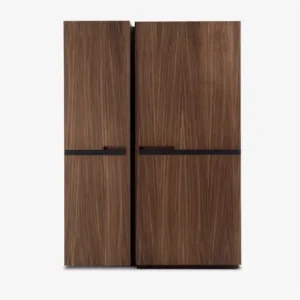
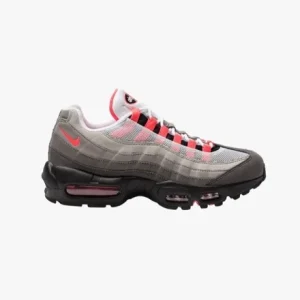
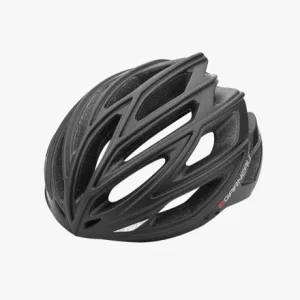
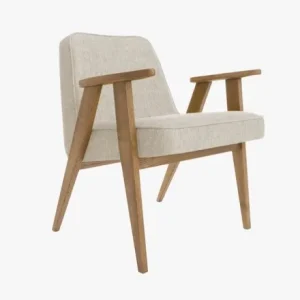
Product images at 440 × 440 px after compression, for scale: wardrobe 7.5 KB, shoe 8.3 KB, helmet 14.0 KB, armchair 15.4 KB.
Foreign markets: the description is written afresh, not translated
If you sell into Germany or Spain, translating your English alt text is the worst option available. What you get is English phrases spelled in German words — linguistically correct, but not what a German actually types into a search box.
An example from measured demand: in Germany people search for the English “alt text generator”, not the German “Alternativtext”. In Finland nobody types the word for “converter” — they simply type “webp jpg”. Swedes and Norwegians prefer the verb (“convert”) over the noun (“converter”). Translation will never catch this, because translation works on the sentence, not on how people search.
Copy for a foreign market has to be written from scratch, out of phrases collected for that market.
Where to start: count how much work you have
Before you write a single word, find out the scale. A number like “412 images with no alt text” says more than any resolution to “get round to it one day”.
An order that makes sense:
- Count. How many images have no alt text, how many are named
IMG_xxxx, how many weigh over a megabyte. - Compress everything. It is free, mechanical and requires no thought.
- Describe the images that sell. Product pages, categories, the home page.
- Leave the rest for later. A photograph in a blog post from four years ago can wait.
A checklist for one image
- Filename: lowercase, hyphens, no accented characters, says what is in the picture
- Title: contains the product phrase, but is not identical to the others
- Alt text: describes the product, not the shot; is not a list of keywords
- Description: here you may write about the angle, the background, dimensions, context
- No names, surnames or dates in any of the four fields
- Weight somewhere around 130 KB, in WebP
- If you sell abroad: the description written afresh, not translated
How long this takes
Honestly: keeping to all of the above, one image is 2–4 minutes of work. At three hundred images that is well over a day sitting in the media library.
This is exactly the point at which most people give up — and it is why most shops have libraries full of IMG_4821.JPG. Automating this work makes sense, but it is worth knowing precisely what is being automated, because a tool that writes “close-up of a product on a white background” into the alt text has done nothing at all.
ConverterSEO writes image descriptions by the rules set out above — compression is free and unlimited and runs on your own server, so your images never leave it. The library audit that gives you the number works without an account.
What you get out of it
Filename, title, alt text and description are four fields a search engine cannot guess for itself. Fill them in by the rules above and three things change.
- Your images start being found. Google Images has traffic of its own, and the only road into it runs through the text around the picture. An image with no description is empty to it.
- Your pages stop weighing a ton. A photograph straight from the camera is several megabytes; the same photograph in WebP, with a maximum width set, is a few dozen kilobytes. Across twenty images on a page you can hear that difference in the loading time.
- Alt text stops being an empty attribute. A blind visitor’s screen reader reads it — and so does the search engine, when the image fails to load.
None of this needs technical knowledge. It needs time — and that is the only real problem in the whole job.
How to cut that day down
ConverterSEO is a WordPress plugin. You install it and work where you already are — in the media library. There is no separate panel to upload images to, and nothing to export back.
Two things work without an account: the audit, which counts how many images have no description, carry a name straight from the camera, or have never been compressed — and compression itself, free and unlimited. Compression happens on your own server, so your images never leave it. Only writing descriptions needs an account, because that is the only part that costs anything. The free plan needs no card.